Visual installer authoring
Visual WiX editor for Windows installers
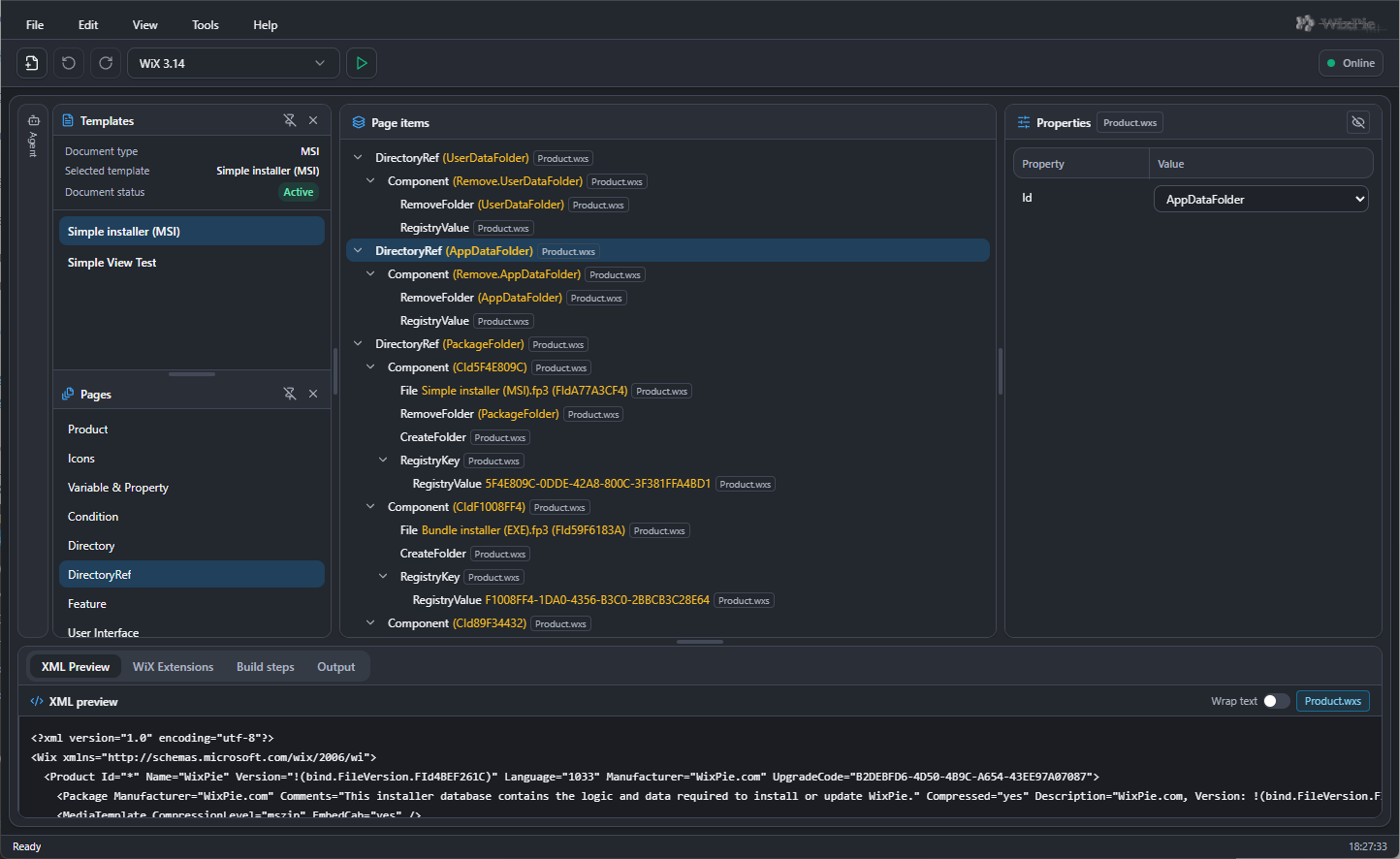
WixPie Online is a browser-based visual WiX editor. Use templates to navigate installer settings and edit properties while inspecting the generated XML. WiX remains the installer authoring format; the visual interface helps you work with its structure.
How visual WiX editing works
A WiX source describes the desired Windows Installer package: product information, target directories, components, files and features. A component is an installation unit, a File supplies payload, and a feature determines which referenced components belong in the package.
In WixPie, a compatible template presents selected parts of that source as pages and property controls. The XML preview lets you inspect the result of an edit. Templates can expose different installer operations, so select one that fits your source and WiX version.
Choose WiX 3 or WiX 5 deliberately
WixPie supports both WiX 3 and WiX 5 authoring. WiX 3 sources use the http://schemas.microsoft.com/wix/2006/wi namespace. WiX 5 uses http://wixtoolset.org/schemas/v4/wxs, despite the v4 in that namespace.
These formats are not interchangeable. For an existing installer, keep the source's WiX version and choose a matching template and local toolset. Opening a project visually is not an automatic migration to another WiX version.
From browser editing to a local MSI build
You can explore the visual editor and open selected WiX source files in the browser. To save local projects or compile installers through WixPie, install the Windows Local Agent and browser extension from the Downloads page, then connect them to the editor.
A local .wixpie project records source files, build settings and the selected toolset. The agent performs authorised local file operations and invokes the installed WiX tools. Browsing the editor alone does not install a compiler on your computer.
- Choose a template compatible with the source's WiX version.
- Edit installer properties and review the XML preview.
- Use local integration when you need project saves or an MSI build.
- Test installation and removal in a separate Windows test environment.
Start with one small installer
For a first project, package one text file before adding application binaries, shortcuts, services or custom actions. A small package makes it easier to understand where files go and how components are connected to features.
The first-MSI guide below includes complete examples for WiX 3 and WiX 5. If you already maintain an installer, use the existing-project guide to open its sources and compare your changes before saving.
Try the workflow in WixPie
Open the browser editor to explore a compatible template. For local files and MSI builds, follow the Local Agent and extension setup on the Downloads page.